How to read AI-generated Markdown files on your Mac
Turn AI-generated plans, READMEs and agent instructions into readable documents, then review them with confidence.
Your AI assistant has finished a task and left you with a file called plan.md, README.md, or AGENTS.md. Open it as plain text and you may see hashes, vertical bars, backticks and links mixed in with the actual information. Those characters are Markdown: simple text instructions that a compatible viewer can turn into headings, tables and readable code.
Here’s a practical way to find, read and review those documents on a Mac, whether you need a quick glance or a longer review.
What are these Markdown files?
A .md file is plain text with formatting conventions. A README often explains a project; a plan can describe proposed work, decisions or next steps. An AGENTS.md or CLAUDE.md file can contain instructions for an AI assistant working in a project. Their exact role depends on the tool and where the file lives. GitHub documents how Copilot uses repository instructions; Anthropic explains project instructions in CLAUDE.md.
These files are useful to read before accepting an agent’s work: a proposed plan can differ from the final implementation, and instructions can affect later tasks.
Find the file and preview it
- Find the file path in your assistant’s response or project folder. In Finder, use Go → Go to Folder if you have a path.
- Select the
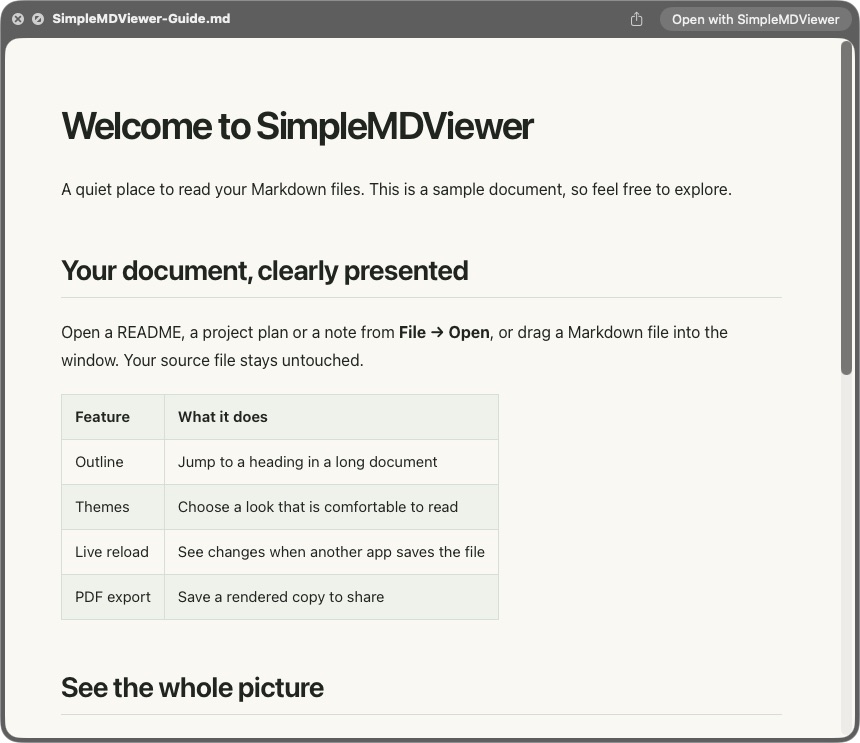
.mdfile and press Space to open Quick Look. - If the preview shows raw Markdown, use an installed Markdown Quick Look extension or open the file in a Markdown viewer. The preview provider depends on your Mac’s configuration.
SimpleMD Viewer includes a Finder Quick Look extension. If needed, enable it in System Settings → General → Login Items & Extensions → Quick Look; names can vary by macOS version. Our Finder preview guide walks through the setup. Apple also documents the Quick Look controls.
Open a longer document in a reader
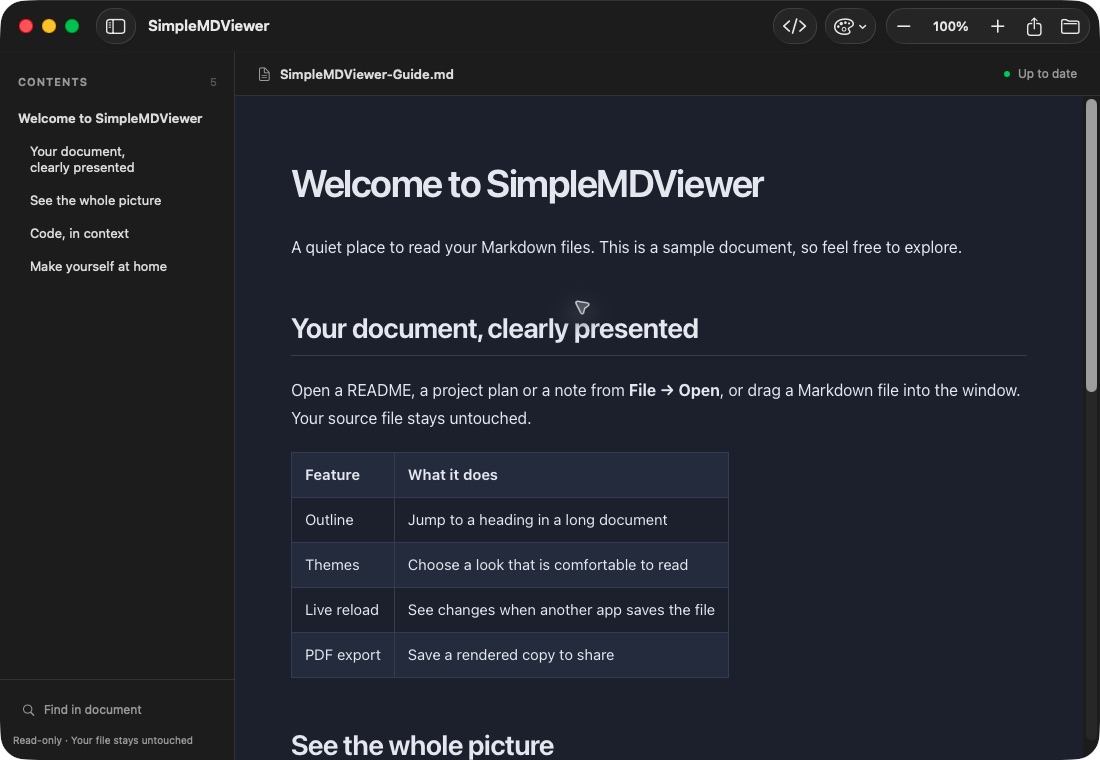
For a detailed plan, open the file in SimpleMD Viewer and use the outline to move between sections. Search for a decision, switch the reading theme or adjust the zoom. The reader displays the document without editing its source, and reloads an open file when it changes.
If you prefer to see or change the source, open the file in your text editor. You can also use the free browser Markdown preview for pasted text; it processes text in your browser, with links and images disabled in that preview.
Review the details that are easy to miss
- Actions and assumptions: Identify what the document proposes, what actually happened, and what still needs a decision.
- Tables and code: Read the column headings, file paths and commands carefully. Highlighting helps readability; it does not make a command safe or correct.
- Diagrams: Some files contain Mermaid code blocks. SimpleMD Viewer supports Mermaid rendering; if a diagram does not render, inspect the source and check its syntax.
- Links and claims: Open relevant sources and check important facts. A polished document can still contain mistakes or outdated information.
- Changes: Compare the document with the actual files or version history before approving work. A plan is a description, not proof that a change was made.
Keep your notes private and useful
Consider whether a file contains credentials, customer information or private project details before sharing it. Review locally when that suits your workflow, and remove sensitive material before sending a copy to someone else. If you need to share a formatted version, SimpleMD Viewer can export the open document to PDF; check the exported pages before sending.
Make Markdown easier to open next time
To open one file in your chosen reader, Control-click it in Finder and choose Open With. To set the default for files of that type, use Finder’s Get Info → Open with → Change All. Our default app guide explains the steps. The app that opens a file and the extension that supplies its Quick Look preview can be different.
Frequently asked questions
Do I need an AI tool to open an AI-generated Markdown file?
No. A Markdown file can be opened in a text editor or a compatible Markdown reader. The assistant that wrote it is not needed to read the saved file.
Does rendering a file verify its contents?
No. Rendering makes formatting easier to read. Check commands, facts and proposed changes independently before acting on them.